
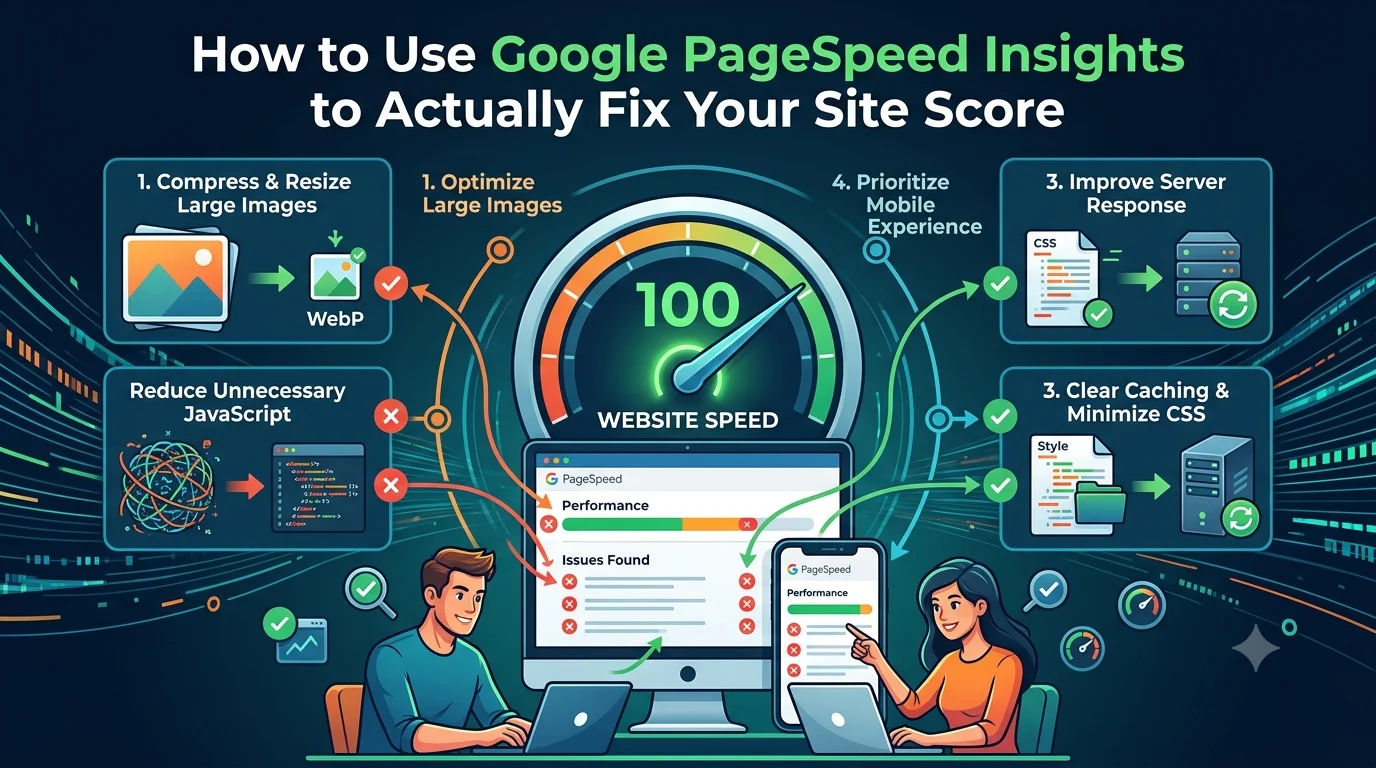
A fast website gives visitors a better feel and makes it less hassle for them to hand out check out and do something . But when a page crawls people can go away before they even see what you offer.
That is where Google PageSpeed Insights solves. It’s more than just your website score. It also shows you what may be making a page slow and where you should what to fix first
This google pagespeed insights guide shows you how to read the report, catch the errors that matter and improve your website without getting full of teach words .
AI Overview
Google PageSpeed Insights helps you find the top reason a web page may be slow. To get better results, test the exact page, check mobile and desktop performance, review the tips and fix the top issues first. Places to check include images JavaScript CSS server response caching and Core Web Vitals.
The goal is not simply to get a perfect score. The real goal is to make your website faster and easier to use.
Key Takeaways
- Test important pages individually.
- Check both mobile and desktop results.
- Look beyond the overall score.
- Fix the biggest problems first.
- Compress and resize large images.
- Remove unnecessary scripts and resources.
- Check your server response time.
- Pay attention to Core Web Vitals.
- Test again after making changes.
- Focus on the visitor’s experience, not just the number.
What Is Google PageSpeed Insights?
Google PageSpeed Insights is a free tool that checks the performance of a web page. You simply enter a URL and it gives you a report showing performance information and areas that may need attention.
The useful part is not just the score.
- Homepage
- Blog posts
- Product pages
- Service pages
- Landing pages
- Other important pages
Remember that each page can have different performance issues, so testing only your homepage is not enough.
How to Read Your PageSpeed Report
After running a test you will see a performance score along with different metrics and recommendations.
The performance score is generally grouped into three ranges:
- 0 49 Poor
- 50 89 Needs improvement
- 90 100 Good
Do not worry if your first score is low. Think of it as a starting point.
The recommendations underneath the score are much more useful because they give you clues about what is causing the problem.
You should also check Core Web Vitals especially:
- LCP: How quickly the main content appears.
- INP: How quickly the page responds to interactions.
- CLS: How much the layout moves while loading.
These measurements help you understand what the experience is actually like for visitors.
How to Fix PageSpeed Score
If your website has a poor result, you need to fix pagespeed score problems based on what the report is showing.
Do not try to fix everything at once. Start with the issues that can make the biggest difference.
Optimize Large Images
Images are often one of the easiest places to start.
A high quality image can also be a very large file. If you upload a huge image when the page only needs a smaller version, visitors are downloading unnecessary data.
Try to:
- Resize images before uploading.
- Compress them.
- Use modern formats such as WebP or AVIF when appropriate.
- Avoid unnecessarily large background images.
- Pay special attention to large images near the top of the page.
You can usually reduce image size without making the image look noticeably worse.
Reduce Unnecessary JavaScript
JavaScript gives websites useful features, but too much of it can slow down loading and interactions.
Check whether your website is loading scripts for features you no longer use. Pop ups sliders, chat tools tracking service and plugins can all add extra code.
Remove scripts you do not need and delay non-essential scripts when possible.
Clean Up CSS
Your website may also load CSS that a particular page does not really need.
This can happen after adding several plugins themes page builders or custom design elements.
Reducing unnecessary CSS can help the browser process the page more efficiently. Just make sure you test the website after making changes so you do not accidentally break the design.
Check Your Server
Sometimes the problem is not on the page itself.
A slow server can delay the entire loading process. Poor hosting, heavy database queries, high server load or weak caching can all contribute.
If your server is slow, consider whether your hosting and website setup are still suitable for your traffic and needs.
How to Improve PageSpeed Insights
If you want to improve pagespeed insights results, avoid making changes simply because a recommendation looks technical.
Instead, ask yourself which problem is having the biggest effect.
Start with large files and important resources. Then review JavaScript, CSS, server response, caching and third party tools.
Focus on Mobile
Always check the mobile report.
A website that feels quick on a desktop computer can still feel slow on a phone. Mobile visitors may have slower connections and less powerful devices.
If your mobile result is much weaker than your desktop result, investigate why.
Reduce Third Party Resources
Your website may depend on analytics, advertising, chat, social media, tracking or other external services.
These tools can be useful but they can also add loading work.
Go through them and remove anything you no longer need. If a tool is important but not needed immediately consider delaying its loading.
Use Caching
Caching allows certain resources to be reused instead of being generated or downloaded again every time.
Depending on your website suitable caching can improve loading performance and reduce unnecessary server work.
If you use WordPress check your caching setup and make sure different optimization features are not conflicting with each other.
PageSpeed 100 Guide: Can You Really Reach 100?
If you are looking for a pagespeed 100 guide remember one thing: the first 100 is not the only goal.
A perfect score is great, but a website that feels fast and works properly for visitors is more important.
If you want to work toward a very high score start with the basics
Keep Your Images Lightweight
Use properly sized and compressed images instead of huge files.
Remove Unnecessary Code
Look for JavaScript and CSS that your website does not actually need.
Keep Pages Simple
Too many animations, widgets, pop ups tracking tools and external resources can make optimization harder.
Improve Server Performance
Good hosting caching and an appropriate CDN can give your website a stronger performance foundation.
Prioritize Important Content
Make sure the content visitors need first is not delayed by less important resources.
Test After Every Major Change
Do not make ten changes and then run one test. Make a change, test the page and compare the result.
You may reach 100 on some pages while others may perform very well at 90 95 or 98. That is perfectly fine if the real experience is fast.
Site Speed Fix Tutorial: A Simple Process
Here is a practical site speed fix tutorial you can follow whenever a page feels slow.
Test the Page
Enter the exact URL into PageSpeed Insights and record the result.
Check Mobile and Desktop
Compare both reports and see where the biggest problems appear.
Find the Biggest Issue
Look through the recommendations and start with the issue that has the greatest potential impact.
Optimize Images
Resize and compress large images, especially important images near the top of the page.
Review JavaScript
Remove unnecessary scripts and delay non-essential resources where appropriate.
Review CSS
Look for unnecessary styles and resources that are not needed on the page.
Check Your Server
If the server is responding slowly, review your hosting, caching and database setup.
Review External Tools
Check analytics, advertisements, chat tools and tracking scripts. Keep only what you actually need.
Test Again
Run another PageSpeed test after making important changes.
Check the Actual Website
Open the page yourself on a phone and desktop. Make sure it loads smoothly, responds quickly and does not jump around while loading.
Common PageSpeed Mistakes
Only Testing the Homepage
Your homepage might be fast while your product or blog pages are slow.
Chasing 100
A perfect score looks good but visitors care about how quickly and smoothly the website works.
Installing Too Many Optimization Plugins
More plugins do not automatically mean better performance. Some may overlap or create conflicts.
Ignoring Large Images
One oversized hero image can have a noticeable effect on page loading.
Keeping Every Third Party Tool
If you do not really use a tool there may be little reason to keep loading its scripts.
Changing Everything at Once
Make changes gradually so you can see what actually improved the page.
When Should You Check PageSpeed Insights?
You do not need to test your website every day.
It is a good idea to run a new test when you:
- Redesign an important page
- Change your theme
- Install major plugins
- Add new scripts
- Upload many images
- Change hosting
- Add new website features
- Notice that your website feels slower.
Quick PageSpeed Checklist
- Test the exact URL.
- Check mobile performance.
- Check desktop performance.
- Review Core Web Vitals.
- Resize large images.
- Compress images.
- Review JavaScript.
- Remove unnecessary CSS.
- Check server response.
- Review third-party resources.
- Use caching where appropriate.
- Test again after major changes.
- Check the real user experience.
Common PageSpeed Problems and Quick Fixes
| PageSpeed Problem | What It Means | What You Can Do |
| Large images | Images are heavier than necessary | Resize and compress images |
| Slow server response | The server takes too long to respond | Check hosting caching and server setup |
| Unused JavaScript | Extra code is loading unnecessarily | Remove or delay unnecessary scripts |
| Unused CSS | Styles are loaded even when they are not needed | Remove unnecessary CSS |
| Render blocking resources | Some files delay important page content | Optimize how CSS and JavaScript load |
| Too many third party scripts | External tools add extra loading work | Remove tools you do not need |
| Poor LCP | Main content takes too long to appear | Optimize important images and resources |
| High INP | The page responds slowly to interactions | Reduce heavy JavaScript |
| High CLS | Page elements move while loading | Set proper dimensions for images and other elements |
| No effective caching | Resources are repeatedly loaded | Use suitable browser and server caching |
Conclusion
Google PageSpeed Insights is more than just a checker that gives you a score. It explains what is dragging your speed and where you should work on . Instead of running after every problem at once, start with the top issues, such as heavy images, slow server to many scripts and weak on mobile .
You do not always need a perfect 100 score. What really matters is having a website that loads fast, runs smoothly and gives visitors a good experience. Run tests, make fixes one by one and check the results after every big fix.
If you need expert assistance in auditing your site structure or scaling your technical performance, the team at Brandsholder is here to help you optimize your digital footprint for speed and conversions.
Frequently Asked Questions
What Is Google PageSpeed Insights Used For?
Google PageSpeed Insights is used to check how well a web page performs. It spots issues that can slow your website and gives you tips to speed it up .
Is a PageSpeed Score of 100 Necessary?
No. A score of 100 is excellent, but it is not the only goal. A website should load quickly, respond smoothly and give a good experience for visitors.
Does PageSpeed Insights Affect SEO?
Website performance is one part of Google’s overall page experience considerations but it is not the only SEO factor. A high PageSpeed score by itself does not guarantee better rankings.
Why Is My Website Fast on Desktop but Slow on Mobile?
Mobile devices can have slower connections and less processing power than desktop computers. Large images, heavy JavaScript and other resources can therefore have a bigger impact on mobile performance.
How Often Should I Check Google PageSpeed Insights?
Check your important pages after major website changes such as a redesign, theme change, new plugins, new scripts or large image uploads. You should also test the page when visitors start experiencing slower loading.