This guide explains how to build a reliable Google Ads conversion tracking setup in 2026 using Google Ads, Google Analytics 4, and Google Tag Manager. It covers creating conversion actions, installing tags, importing GA4 events, enabling Enhanced Conversions, implementing Consent Mode, avoiding common tracking mistakes, and following best practices for accurate reporting. With a properly configured measurement strategy, businesses can improve campaign optimization, increase return on investment, and make confident, data-driven advertising decisions.
Running Google Ads without conversion tracking is like driving with your eyes closed. You may get clicks and traffic, but you won’t know which campaigns generate leads or sales. In 2026, accurate measurement is more important than ever because Google’s AI-powered bidding relies heavily on reliable conversion data. This guide explains everything in simple language, helping beginners and experienced marketers build a tracking setup that delivers trustworthy insights and better advertising results.
What Is Google Ads Conversion Tracking in 2026?
Google Ads conversion tracking measures the actions people take after clicking your ads. These actions can include purchases, contact form submissions, phone calls, newsletter sign-ups, or appointment bookings. Every recorded conversion helps Google understand which audiences are more likely to complete valuable actions. Accurate tracking also provides advertisers with reliable reports for making smarter marketing decisions.

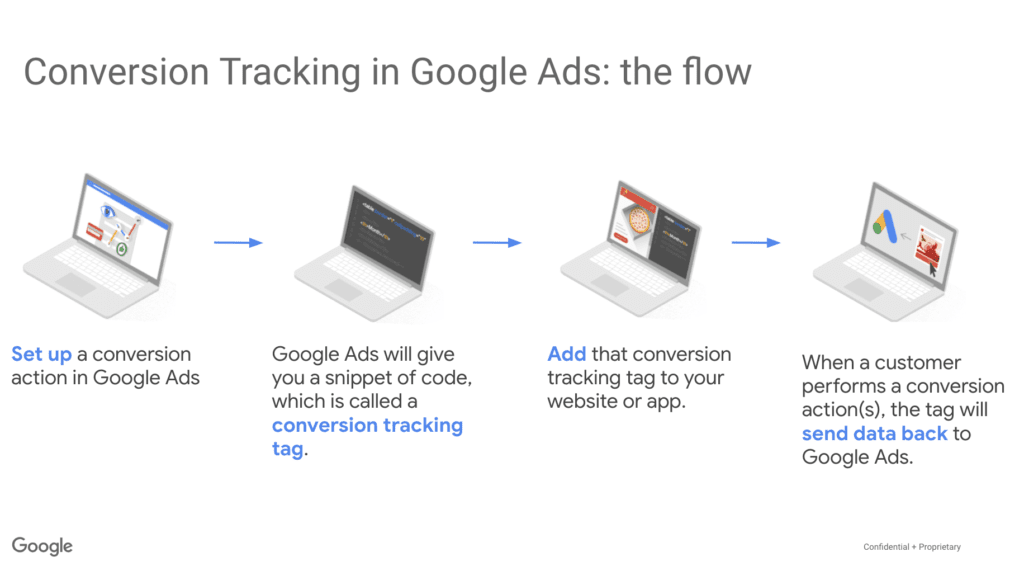
How Conversion Tracking Works
When someone clicks your advertisement and completes a desired action, a conversion tag or imported event records that activity. The data is then sent back to your Google Ads account, allowing you to measure campaign performance accurately. Google’s automated bidding system also uses this information to improve future ad placements and targeting.
Types of Conversions You Can Measure
Different businesses have different goals, so Google Ads supports multiple conversion types. An online store may track purchases, while a local business may monitor phone calls or quote requests. Service-based companies often focus on lead forms, appointment bookings, and email subscriptions to measure campaign success.
Why Accurate Tracking Improves Campaign Performance
Reliable conversion data helps identify campaigns that generate real business value instead of only attracting website visitors. Better measurement improves budget allocation and helps eliminate ads that fail to deliver results. Over time, Google’s machine learning uses this information to increase conversion opportunities while reducing wasted advertising spend.
Why Google Ads Conversion Tracking Matters
Modern advertising depends on data rather than assumptions. Without proper tracking, advertisers cannot calculate return on investment or understand which keywords produce qualified leads. A complete measurement strategy also supports long-term growth by providing insights into customer behavior and campaign effectiveness.
Better ROI Measurement
Conversion tracking connects advertising costs with actual business outcomes. Instead of focusing only on clicks, you can evaluate which campaigns generate revenue, leads, or customer inquiries. This clarity makes budgeting decisions much easier and more profitable.
Smarter Automated Bidding
Google’s Smart Bidding strategies rely on conversion data to optimize campaigns automatically. Accurate signals help the system identify high-intent users and adjust bids accordingly. Better data usually leads to stronger campaign performance over time. Learn more about the broader shift in this space through our article on how AI is changing Google Ads smart bidding, PMax, and what’s next.
Understanding Customer Journeys
Customers rarely convert immediately after seeing an advertisement. Tracking reveals how users interact with your website before completing valuable actions. These insights help improve landing pages, content, and marketing strategies.
Key Benefits of Conversion Tracking
| Benefit | Business Impact |
|---|---|
| Measures ROI | Understand campaign profitability |
| Improves AI bidding | Better automated optimization |
| Identifies winning keywords | Focus budget on high performers |
| Tracks valuable actions | Monitor leads and sales accurately |
| Supports reporting | Make data-driven decisions |
Prerequisites Before You Begin
Before configuring tracking, ensure you have the required tools ready. Proper preparation reduces setup errors and saves valuable troubleshooting time later. A well-organized implementation also improves data accuracy from the beginning.
Google Ads Account
Start with an active Google Ads account that has administrative access. You’ll create conversion actions directly within the account before installing any tracking tags. Verify your billing and account settings to avoid interruptions during implementation.
GA4 Property
A connected Google Analytics 4 property provides additional insights into user behavior. GA4 allows you to import valuable events into Google Ads and compare advertising performance with broader website analytics. Linking both platforms creates a stronger measurement foundation. To understand the difference between the two, our guide on Google Search Console vs Analytics explains which data actually matters for your campaigns.
Google Tag Manager
Google Tag Manager simplifies tag management without requiring repeated website code changes. It allows marketers to publish tracking updates quickly while reducing development effort. GTM also includes preview tools for testing tags before they go live.
Website Access
You need access to your website or content management system for installation. Whether using WordPress, Shopify, or a custom-built website, administrator permissions make implementation much easier. Confirm you can edit website code or install tags through your preferred platform.
Consent Mode Requirements
Privacy regulations continue evolving across different countries and industries. Implementing Consent Mode helps respect user preferences while maintaining valuable measurement capabilities. This approach also improves compliance with modern privacy expectations.
Implementation Checklist
| Requirement | Why It Matters |
|---|---|
| Google Ads account | Create conversion actions |
| GA4 property | Import events and analyze behavior |
| Google Tag Manager | Manage tracking efficiently |
| Website access | Install required tags |
| Consent configuration | Improve privacy compliance |
How to Set Up Conversion Tracking in Google
Setting up tracking correctly requires following each step carefully. Small mistakes during installation can prevent conversions from being recorded accurately. Testing each stage before launching campaigns reduces reporting issues later.
Create a Conversion Action
Begin inside Google Ads by selecting Conversions under the Goals section. Choose the appropriate conversion type, such as website purchases, contact forms, phone calls, or imported events. Assign meaningful names and select the correct conversion category for easier reporting.
Configure Conversion Settings
Customize important settings according to your business objectives. Define conversion values, counting methods, attribution models, and conversion windows carefully. These options influence how campaign performance appears in reports and automated bidding strategies.
Install the Google Tag
Google provides a global site tag that must appear across your website. If you already use Google Tag Manager, installing the tag becomes much simpler. Ensure the tag loads correctly on every page before proceeding with additional tracking events.
Add the Conversion Event Snippet
Each conversion action requires an event snippet that fires after users complete a valuable action. This may happen on a thank-you page or after a successful purchase confirmation. Accurate trigger placement ensures every completed action is recorded only once.
Publish Tags Using Google Tag Manager
If you’re managing tags through GTM, publish the updated container after testing. Always use Preview Mode before publishing changes to verify that every trigger activates correctly. This step prevents missing or duplicate conversions after deployment.
Test Your Setup
Never assume tracking works immediately after installation. Complete a test conversion yourself and review Tag Assistant, GTM Preview, and Google Ads diagnostics for confirmation. Early testing saves hours of troubleshooting once campaigns start generating traffic.
GA4 Google Ads Tracking Setup
Google Analytics 4 and Google Ads work best when connected together. Linking both platforms creates deeper insights into user behavior while supporting stronger campaign optimization. It also provides flexibility when measuring complex customer journeys.
Link GA4 to Google Ads
Start by linking your GA4 property with your Google Ads account. This connection allows data sharing between both platforms and enables event imports. Verify permissions before completing the integration to avoid synchronization issues.
Import GA4 Events
Once linked, select valuable GA4 events and import them as conversions into Google Ads. Common examples include purchases, lead submissions, appointment bookings, and account registrations. Import only meaningful events to keep reporting clean and actionable.
Mark Events as Conversions
Inside GA4, mark important business events as conversions before importing them. Clear naming conventions make reports easier to understand across marketing teams. Consistent event management also improves long-term reporting accuracy.
Verify Imported Conversions
After importing events, monitor reports for successful data collection. Compare GA4 reports with Google Ads to ensure numbers align within expected differences. Regular verification helps identify tracking problems before they impact campaign performance.
GA4 Import vs Native Google Ads Tracking
| Feature | Native Google Ads Tracking | GA4 Import |
|---|---|---|
| Setup Complexity | Simple | Moderate |
| User Journey Analysis | Limited | Advanced |
| Cross-platform Reporting | Basic | Comprehensive |
| Event Flexibility | Moderate | High |
| Best For | Direct ad conversions | Full customer journey |
Conversion Tag Setup Using Google Tag Manager
Google Tag Manager (GTM) is one of the easiest ways to manage tracking tags without editing your website’s code every time. It gives marketers greater control while reducing dependency on developers. A clean GTM setup also makes future updates faster and more organized.
Create a Conversion Tag
Open your GTM container and create a new Google Ads Conversion Tracking tag. Enter the Conversion ID and Conversion Label provided inside your Google Ads account. Double-check these values because a small mistake can prevent conversions from being recorded.
Configure Triggers
The trigger determines when your conversion tag should fire. For example, a lead form should trigger after users reach a thank-you page, while an eCommerce purchase should trigger after order confirmation. Always choose the most reliable event instead of tracking button clicks alone.
Test with Preview Mode
Preview Mode is your best friend before publishing any changes. Complete a test conversion and confirm that the tag fires only once. If multiple tags fire for the same action, review your triggers to avoid duplicate reporting.
Publish Your Container
Once everything works correctly, publish the GTM container. Keep a version name and description so you can easily roll back if problems appear later. Good version management saves time during future updates.
Enhanced Conversions and Consent Mode in 2026
Privacy regulations continue evolving, making accurate measurement more challenging than before. Google introduced Enhanced Conversions and Consent Mode to improve reporting while respecting user privacy. Full technical documentation on these features is available directly on Google’s official Ads Help Center, which advertisers can reference for the latest implementation guidelines.
What Are Enhanced Conversions?
Enhanced Conversions securely use first-party customer information, such as email addresses, after hashing the data. This helps recover conversions that might otherwise be missed due to browser restrictions. The result is more accurate reporting without exposing personal information.
Why Consent Mode Matters
Consent Mode adjusts Google’s tracking behavior based on the user’s cookie preferences. When visitors decline tracking cookies, Google uses modeling techniques to estimate conversions responsibly. This approach balances privacy requirements with campaign measurement.
Privacy Best Practices
Build your tracking strategy around transparency and compliance. Display clear consent banners, maintain an updated privacy policy, and collect only the information necessary for measurement. These practices improve user trust while supporting long-term advertising success. Since tracking setup and SEO both depend on healthy site infrastructure, it’s worth reviewing our guide on Google’s Helpful Content System to see how it scores your website overall.
Common Google Ads Conversion Tracking Mistakes
Even experienced marketers make tracking mistakes that affect campaign performance. Most issues are easy to fix once identified. Regular audits prevent inaccurate reporting from influencing optimization decisions.
Duplicate Conversion Tracking
A common problem occurs when the same conversion is tracked through multiple methods. For example, a purchase may be counted by both a Google Ads tag and an imported GA4 event. Decide which method should be your primary measurement source.
Wrong Trigger Selection
Tracking button clicks instead of completed actions often inflates conversion numbers. Users may click a button but abandon the process before submitting a form or completing payment. Always trigger conversions after the final success event.
Missing or Broken Tags
Tags may stop working after website redesigns or plugin updates. Regular testing ensures important business actions continue sending accurate data. Monitoring diagnostics inside Google Ads helps identify issues early.
Incorrect Event Mapping
Naming events inconsistently creates confusion across reports. Use standardized event names that clearly describe each business action. Consistency improves reporting for marketing teams and stakeholders.
Ignoring Consent Settings
Ignoring consent requirements may reduce data quality and create compliance risks. Configure Consent Mode correctly and review your implementation regularly as regulations evolve.
Best Practices for Accurate Conversion Tracking
Successful advertisers treat tracking as an ongoing process rather than a one-time setup. Regular optimization keeps data reliable and campaigns performing efficiently. Small improvements often create significant long-term benefits.
Use First-Party Data
First-party data has become increasingly valuable in modern digital marketing. Collect information directly from your customers through forms, purchases, and account registrations. This improves measurement quality while supporting privacy-focused advertising.
Audit Your Tracking Regularly
Review tags, triggers, and conversion actions every few months. Website updates can accidentally break tracking without obvious warning signs. Scheduled audits help maintain reporting accuracy.
Verify Conversion Accuracy
Compare Google Ads reports with GA4 and your CRM whenever possible. Small differences are normal, but large gaps usually indicate a tracking problem. Early investigation prevents incorrect optimization decisions.
Optimize for Smart Bidding
Google’s automated bidding performs best with accurate conversion signals. Feed the system high-quality conversion data instead of measuring every minor interaction. Better signals usually produce better campaign outcomes.
Key Takeaways
- Set up tracking before launching any Google Ads campaign.
- Use Google Tag Manager for easier tag management.
- Connect GA4 and Google Ads for stronger reporting.
- Enable Enhanced Conversions for improved measurement accuracy.
- Configure Consent Mode to support privacy compliance.
- Test every conversion before spending advertising budget.
- Audit your tracking regularly to maintain reliable reporting.
- Focus on meaningful business conversions instead of vanity metrics.
Conclusion
A successful advertising campaign depends on accurate measurement more than ever before. Proper conversion tracking helps you understand which campaigns generate real leads, sales, and revenue while giving Google’s AI the data it needs to optimize performance. By combining Google Tag Manager, GA4, Enhanced Conversions, and regular tracking audits, you can build a reliable measurement system that supports smarter marketing decisions throughout 2026 and beyond. If you’re looking for more practical digital marketing insights, detailed guides, and the latest industry trends, Brandsholder is an excellent resource to help you stay ahead.
Frequently Asked Questions
1. Should I use Google Ads tracking or import conversions from GA4?
If your goal is simple lead or sales tracking, native Google Ads tracking works well. If you also want deeper customer journey analysis, importing selected GA4 conversions provides additional insights.
2. How can I check if my conversion tracking is working?
Use Google Tag Manager Preview Mode, Tag Assistant, and the Diagnostics section in Google Ads. Completing a test conversion is the quickest way to confirm everything is functioning correctly.
3. What are Enhanced Conversions?
Enhanced Conversions securely use hashed first-party customer data to improve measurement accuracy when traditional cookies cannot capture every conversion.
4. Why are my Google Ads conversions not showing?
Common reasons include incorrect triggers, missing tags, delayed reporting, duplicate configurations, or incomplete website installation. Reviewing your setup step by step usually identifies the issue.
5. How often should I audit my conversion tracking?
A complete tracking audit every three to six months is recommended. You should also test tracking immediately after website redesigns, plugin updates, or major marketing changes.